
How to Generate AI Images in Canva
1. Introduction to Canva AI
At AIImageMasters, we offer a complete, beginner-friendly course that teaches you how to create stunning AI-generated images using Canva. Whether you are a content creator, designer, business owner, student, or marketer, this course helps you turn simple ideas into professional visuals within minutes.
- Canva has long been recognized as one of the most user-friendly and versatile design platforms available.
- Its intuitive drag-and-drop interface made graphic design accessible to millions of people who never considered themselves designers.
- However, with the rapid evolution of Artificial Intelligence, Canva has expanded far beyond its original capabilities.
- It has transformed into a complete AI-powered design ecosystem, offering advanced tools that can generate images, graphics, text content, videos, and even entire presentations—all with minimal effort.
- One of the most impactful additions to this ecosystem is the Canva AI Image Generator.
- This tool enables users to create completely original visuals simply by describing them in words. Instead of manually designing an image from scratch, you can enter a short text prompt, and Canva instantly converts your idea into a high-quality image.
- For example, you can type prompts such as:
“A futuristic office with neon lights in a blue theme”
A 3D cartoon-style cat reading a book”
“A product shot of a perfume bottle on a marble background”
Within seconds, Canva produces multiple variations based on your description, giving you visually appealing results that would traditionally take hours to create. - Because of this speed, convenience, and creative flexibility, the AI Image Generator has quickly become an essential tool for digital creators. Whether you’re designing for social media, branding, online stores, educational content, or personal projects, Canva’s AI capabilities help you bring ideas to life faster and easier than ever before.
2. Why AI Image Generation Is Important in 2025
In 2025, the digital landscape is evolving at an extraordinary pace. Audiences expect fresh, visually appealing content every day, and businesses must keep up to maintain relevance. However, relying on professional designers or photographers for every small creative requirement is not always practical or cost-effective. This is where AI-generated visuals have become a game-changing solution.
AI-powered image creation offers several advantages:
Speed
AI can generate high-quality images within seconds, drastically reducing the time spent on traditional design or photoshoot processes.
Cost Savings
There is no need to invest in expensive photoshoots, studio setups, equipment, or premium stock images. AI tools provide a far more economical way to create professional visuals.
Unlimited Creativity
AI allows you to bring virtually any concept to life. From futuristic scenes to hyper-realistic product images, artistic illustrations, and branding elements, your creative possibilities are limitless.
Consistency
Maintaining a cohesive brand identity can be challenging when working with multiple creators or sourcing images from different places. AI ensures uniformity across colors, styles, themes, and design elements.
Accessibility
AI empowers everyone, regardless of skill level. Even individuals with no background in design can create attractive, polished visuals suitable for marketing, social media, presentations, and more. AI image generation is no longer just an emerging trend or a glimpse into the future. It is now an essential, widely adopted tool that forms a core part of the modern creative process.
3. What Is Canva’s AI Image Generator?
Canva’s AI Image Generator is an advanced feature built into the Canva platform that uses powerful machine learning models to create images from simple text descriptions. The process is remarkably straightforward, allowing anyone—regardless of design experience—to produce high-quality visuals with ease.
The workflow is simple and intuitive
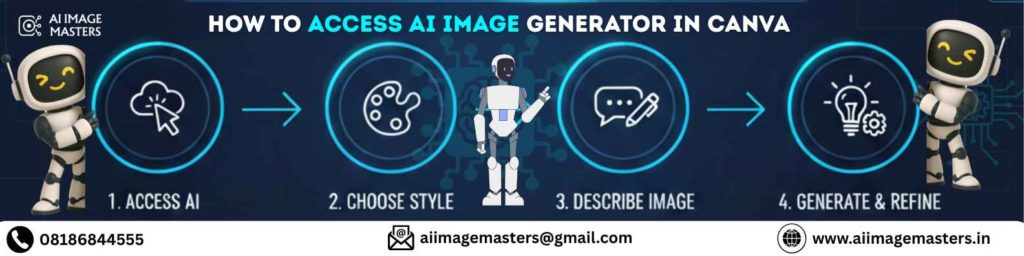
- Begin by typing a description of the image you want to create. This can be as simple or detailed as you prefer.
- You select an image style, such as realistic photography, 3D design, digital art, watercolor, or any other available option.
- Canva’s AI processes your prompt and instantly generates several variations based on your description.
- You select your preferred result, make any necessary edits, and incorporate the image directly into your design.
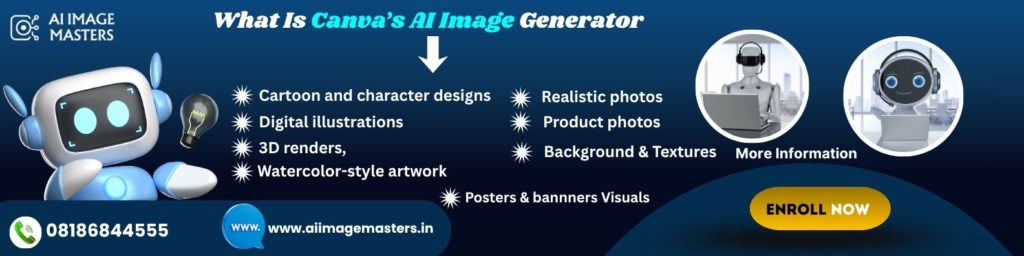
Canva’s AI Image Generator supports a wide range of creative outputs, including:
- Realistic photos
- Digital illustrations
- 3D renders
- Watercolor-style artwork
- Cartoon and character designs
- Product photos
- Social media-ready concepts
- Backgrounds and textures
- Abstract and artistic patterns
- Posters, banners, and marketing visuals.
This versatility makes the tool suitable for both beginners who need quick, ready-to-use visuals and professionals who want to enhance their creative workflow. Whether you’re building brand assets, creating content, or experimenting with new ideas, Canva’s AI Image Generator provides an efficient and accessible way to bring your concepts to life.
4. Key Features of Canva AI
Canva AI is equipped with a robust set of features designed to help users create high-quality images quickly and effortlessly. These tools not only simplify the creative process but also provide greater control, precision, and flexibility, allowing you to produce visuals that match your exact requirements.
Keypoints:
1. Text-to-Image
This feature allows you to generate original images simply by typing a description. Whether you need a realistic photo, an artistic illustration, or a futuristic design, Canva’s AI converts your text prompt into a visually appealing image within seconds.
2. Multiple Styles
Canva offers a wide variety of artistic styles to suit different creative needs. Users can choose from options such as realistic photography, hand-drawn illustrations, neon effects, vintage artwork, 3D renders, cinematic visuals, and many more. This diversity helps you create images that align perfectly with your project’s theme and tone.
3. Magic Edit
Magic Edit enables you to modify specific parts of an image with exceptional accuracy. You can add new elements, replace existing objects, or remove unwanted components—all by highlighting the area and describing what you want.
For example, you can remove a person from a scene, replace a product with a different one, or completely change the background environment.
4. Magic Eraser
This tool allows you to erase unwanted objects or distractions from an image with a single click. Whether it’s a logo, a shadow, a background element, or any visual clutter, Magic Eraser cleans up your image instantly and seamlessly.
5. Magic Expand
Magic Expand helps you extend or widen an image’s background. If your original photo is too small or cropped tightly, this tool intelligently fills in the surrounding space, allowing you to repurpose the image for larger layouts such as banners, posters, or website headers.
6. Background Remover
Canva’s Background Remover automatically eliminates the background from any image, including AI-generated visuals. This is especially useful for creating product photos, social media graphics, profile pictures, or marketing creatives with clean, isolated subjects.
7. High-Quality Outputs
Canva AI supports the generation of high-resolution images, offering sizes like 1024×1024 and even 4K upscaling. This ensures that your visuals look sharp and professional, whether they are used for print, presentations, or digital marketing.
8. Prompt Enhancer
For users who may not know how to write detailed prompts, Canva’s Prompt Enhancer offers intelligent suggestions to improve the clarity and quality of your descriptions. This results in more accurate, visually rich, and refined AI-generated outputs.
5. How to Access AI Image Generator in Canva
Accessing Canva’s AI Image Generator is straightforward and designed to be user-friendly, even for beginners. The entire setup process takes only a few seconds, allowing you to start creating visuals without any technical complications. For any support, feel free to contact us
Step 1: Log in to Canva
Begin by visiting Canva.com on your desktop browser or opening the Canva mobile app on your phone or tablet. Sign in to your account, or create a free account if you are using Canva for the first time.
Step 2: Click on “Create a Design”
Once you are logged in, click the “Create a Design” button on the top right corner of the dashboard. Canva will offer a variety of canvas sizes based on your needs. You can choose any format—such as an Instagram Post (1080×1080), YouTube Thumbnail, Poster, or a custom dimension.
Step 3: Go to “Apps” in the Left Sidebar
After the canvas opens, look to the left-hand side panel. Scroll down to find the “Apps” section. This menu contains all Canva’s advanced tools and integrations. Within this list, locate and select the Text to Image feature.
Step 4: Click “Generate Image”
Once you open the Text to Image tool, a prompt box will appear on the screen. This is where you describe the type of image you want to create. You can use simple or detailed descriptions depending on the complexity of the image you have in mind.
After entering your prompt, click the “Generate” button. Canva will process your input and produce a set of image variations for you to choose from.
By following these steps, you are fully ready to create your first AI-generated image in Canva. The process is fast, intuitive, and designed to help you bring your creative ideas to life with ease.
6. How to Write AI Prompts in Canva (Beginner to Advanced)
Writing effective prompts is the key to generating high-quality AI images. The more clearly you describe what you want, the more accurate and visually appealing your results will be. Below is a structured guide to help you understand how to craft prompts at different skill levels.
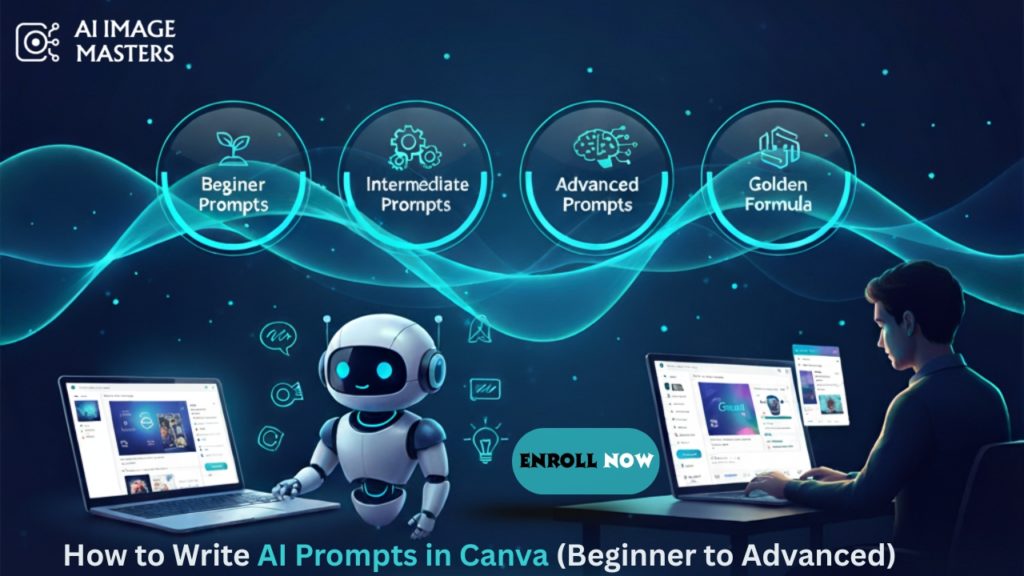
Beginner Prompts (Simple)
If you are new to AI-generated design, start with short, straightforward prompts. These describe only the main subject without additional details.
Examples:
“A cute puppy sitting on grass”
“A modern logo for a tech company”
“A blue background with abstract lines”
These prompts work well when you need quick, basic visuals without complex artistic requirements.
Intermediate Prompts (More Details)
As you gain confidence, begin adding descriptive elements such as style, colors, surroundings, and textures. This helps Canva produce more refined and visually rich results.
Examples:
- A realistic portrait of an Indian woman wearing a blue saree, studio lighting, soft focus.
- 3D illustration of a robot sitting on a desk, neon blue lights, futuristic theme.
Including specific artistic styles and lighting conditions allows the AI to better understand your creative direction.
Advanced Prompts (Professional)
For highly polished, professional-grade images, your prompt should include detailed components such as camera angles, lighting techniques, environment, materials, and mood.
Examples:
- Hyper-realistic product photo of a luxury perfume bottle on a marble background, soft shadows, depth of field, 4K resolution, cinematic lighting.
- Digital artwork of a futuristic Hyderabad skyline, holographic buildings, glowing blue lights, cyberpunk style, atmospheric fog, ultra-detailed.
These prompts are ideal for branding, marketing, advertising, and high-end visual projects.
Golden Prompt Formula
To consistently achieve excellent results, use this structured formula:
Subject + Style + Environment + Lighting + Angle + Mood
Example:
- A professional food photograph of pancakes with honey, rustic wooden table, natural warm lighting, top view, soft shadows, cozy mood.
This approach helps you provide clear, specific guidance to Canva’s AI system, ensuring the output aligns closely with your expectations. When you follow this formula, you significantly increase your chances of generating high-quality, visually appealing images every time.
7. Step-by-Step: How to Generate AI Images in Canva
- Artificial intelligence has changed the way we design, create content, and build visuals for social media, branding, marketing, and advertising. One tool that has made this transformation easy for everyone—beginners, students, designers, and business owners—is Canva AI Image Generator.
- With Canva, you don’t need to learn complicated software or have years of design experience. You simply type what you want, and Canva creates high-quality images for you in just seconds. Whether you want realistic photos, 3D objects, digital art, logos, illustrations, or backgrounds, Canva can generate almost anything.
- In this detailed guide, you will learn how to generate AI images in Canva, how to write powerful prompts, how to use different styles, and how to create professional-quality results even if you’re a complete beginner.
This blog covers everything from basics to advanced techniques, written in simple English so anyone can understand easily.
What Are AI Images?
AI images are visuals created using artificial intelligence tools. Instead of drawing, clicking, or editing manually, you describe what you want in words, and the AI turns your words into pictures.
You simply enter a “prompt”—a short description of the image you want—and the AI generates it.
Example prompt:
- A futuristic blue tech background with glowing digital lines.
- AI understands the description and creates multiple image variations based on it.
Why Use Canva for AI Image Generation?
There are many AI image generators, but Canva stands out because:
1. It is extremely easy to use – Everything works inside Canva’s simple drag-and-drop editor.
2. No complicated settings – Perfect for beginners and non-designers.
3. Professional-quality results
Useful for:
- Thumbnails
- branding
- Instagram posts
- Ads
- Presentations
- Website graphics
4. Ready-made styles – You can choose between photo, 3D, neon, digital art, etc. with one click.
5. You can edit the image instantly – Add text, remove background, adjust colors, or add effects.
6. Affordable and accessible – Works perfectly even on free accounts.
How to Generate AI Images in Canva (Step-by-Step Guide)
Below is the complete process explained in a simple and beginner-friendly way.
Step 1: Open Canva & Create Your Design
Start by opening Canva in your browser or mobile app.
Click “Create a design” and choose the size you need.
Popular sizes:
- Instagram Post (1080×1080)
- YouTube Thumbnail (1280×720)
- Facebook Post
- Blog Banner
- Custom size
Any size will work for generating AI images.
Step 2: Open the Canva AI Image Generator
From the left-side menu: - Click “Apps”
- Search for “Text to Image”
- Click to open it
This is Canva’s built-in AI image generator tool.
Step 3: Type Your Prompt (Description)
This is the most important step.
Write clearly what you want Canva to generate.
Example: - A blue futuristic tech background with glowing lines.
- Your prompt does not need to be perfect. Canva understands natural, simple English.
Step 4: Choose an Image Style
Canva lets you choose from multiple creative styles: - Photo
- Digital Art
- 3D
- Painting
- Watercolor
- Minimalistic
- Anime
- Neon
- Retro
- Modern
- Realistic.
Each style gives a different look and feel.
Choose the one that matches your project.
Example:
A logo → Modern or Minimalistic
A thumbnail → 3D or Photo
An aesthetic background → Watercolor or Painting
A futuristic theme → Neon or Digital Art
Step 5: Select Aspect Ratio
AI images can be generated in multiple sizes:
- Square (1:1)
- Portrait
- Landscape
- Widescreen
- Custom
Choose the ratio based on your project.
Example:
Instagram post → Square
Website banner → Landscape
Poster → Portrait
Step 6: Click “Generate”
Canva will now create four image variations based on your prompt and selected style.
This usually takes only a few seconds.
Step 7: Choose the Best Output
Review the four generated images.
Click on the one you like → It will be added into your design.
If you want more options, click Generate again.
Step 8: Edit the AI Image (Optional)
You can enhance your AI-generated image using Canva tools: - Add filters
- Adjust brightness, contrast, saturation
- Remove background
- Add outlines or shadows
- Crop or resize
- Add text or graphics
- Apply effects like glow, blur, vignette
Canva gives you full creative control.
Step 9: Download Your Final Design
Once you are happy with the edits:
Click Share → Download and choose: - PNG (most common)
- JPG (smaller size)
- PDF (for printing)
8. How to Edit, Enhance & Customize AI Images
- Once you generate an AI image, Canva gives you powerful editing options:
1. Magic Edit– Allows you to add or replace anything.
Example:
Replace a cup with a laptop in an image.
2. Magic Eraser– Remove: - People
- Logos
- Objects
- Background items
3. Magic Expand – Extend the background to make a wider photo.
4. Photo Enhancer – Improves clarity and sharpness.
5. Filters & Effects- You can choose: - HDR
- Retro
- Pixel
- Duotone
- Color Mix
- Glow
- Shadows
6. Background Remover- Turn any AI image into a clean PNG.Perfect for: - Ecommerce
- product images
- Social media posts
- Marketing banners
9. Best Use Cases of Canva AI Image Generator
The Canva AI Image Generator has become a widely used tool across multiple industries because of its speed, simplicity, and ability to produce high-quality visuals without advanced design skills. Whether you are a creator, educator, marketer, or business owner, Canva’s AI features can transform your workflow and help you produce professional content in minutes.
Below are the top real-world use cases where Canva AI delivers exceptional results.
1. Social Media Content Creation
Social media platforms demand constant visual content, and Canva AI makes this process effortless. You can generate engaging graphics within seconds for:
- Instagram posts and stories
- Facebook banners and ads
- YouTube thumbnails and channel art
- LinkedIn graphics
- Reels and short-form video backgrounds
The AI helps maintain consistency in your theme, color palette, and style, making it easier to build a strong online brand identity.
2. Branding and Marketing
Businesses use Canva AI to speed up creative production for branding and promotional activities.
Using the AI Image Generator, you can create:
- Logo concepts
- Brand patterns and textures
- Posters and flyers
- Brochures and marketing materials
- Ad creatives for Google Ads, Meta Ads, and more
This makes it a powerful tool for small businesses, startups, and agencies that need quick high-quality visuals.
3. Business Presentations
Professionals rely on Canva to enhance their presentations. With AI-generated visuals, you can instantly produce:
- Custom illustrations
- Icons
- Infographics
- Process diagrams
- Concept visuals
These elements help communicate ideas more effectively while improving the overall design quality of business presentations.
4. Ecommerce Product Photos
Canva AI is extremely useful in the ecommerce industry, especially for brands that need product visuals but do not always have access to professional photography.
You can generate or enhance:
- Product mockups
- Lifestyle backgrounds
- Studio-style product images
- Clean PNG cutouts
- Catalog-ready visuals
This allows ecommerce sellers to maintain a premium look on marketplaces like Amazon, Flipkart, Etsy, and Shopify.
5. Blogging and Website Design
Bloggers and website owners use Canva AI to create visuals that support their articles and landing pages. You can easily generate:
- Blog banners
- Featured images
- Illustrations
- Section dividers
- Website hero images
With visually appealing images, your blogs become more readable, engaging, and SEO-friendly
6. Education and Learning Materials
Teachers, trainers, and students use Canva AI for academic and training purposes. It can generate:
- Diagrams
- Charts
- Learning
- worksheets
- Visual explanations
- Class presentations
- Concept art
This makes learning more interactive and helps simplify complex topics.
7. Custom Art and Personal Projects
Canva AI is also popular among hobbyists and creative individuals who want to generate personal artwork. With just a few prompts, you can create:
- Portraits
- Digital paintings
- Wallpapers
- Motivational posters
- Wall art
- Custom illustrations
It’s a creative playground for artists and non-artists alike.
8. Everyday Content Creation for Influencers & Coaches
Influencers, YouTubers, and coaches use Canva AI daily to create:
- Thumbnails
- Quotes
- Visual hooks
- Presentation slides
- Digital products
- Course materials
- Social media carousels
Since Canva automates the design process, creators can publish content faster and maintain a consistent presence online.
10. Tips to Get Better Results While Creating AI Images
Generating high-quality AI images in Canva depends largely on how clearly you communicate your idea to the tool. Canva’s AI is powerful, but it responds best to prompts that are detailed, structured, and visually descriptive. Below are expert tips you can follow to consistently produce professional, accurate, and visually compelling AI visuals.
1. Write Clear and Specific Prompts
The biggest mistake beginners make is using vague descriptions. A prompt like “make a beautiful background” is too general and gives the AI very little direction.
Instead, be specific about the elements you want.
Avoid- “Make a beautiful background.”
Use:
“A refined blue gradient backdrop featuring gentle lighting and a polished, futuristic surface texture”
When your prompt includes details about color, lighting, texture, and mood, Canva can deliver far better results.
2. Always Mention Colors (Especially Your Brand Colors)
Colors play a major role in visual consistency. If your brand uses a specific color palette—such as your brand shade — include it directly in the prompt.
Example prompt:
“Blue color theme with modern futuristic lines and soft neon glow.”
This ensures that all images match your website branding, social media aesthetics, and marketing materials.
3. Define the Style Clearly
Canva supports a wide variety of artistic styles. Mentioning the style in your prompt helps the AI understand exactly what look you want.
Useful style keywords include:
- Realistic
- 4K detailed
- 3D art
- Digital illustration
- Professional
- photography
- Anime style
- Watercolor
- Neon glow
- Minimalistic
Cinematic lighting
Example:
“Realistic 4K photo of a workspace with blue neon accents.”
This gives the AI a clear creative direction.
4. Add Camera Angles to Shape the Composition
Camera angles determine how your subject will appear in the frame. This is especially important for product photos, thumbnails, and portraits.
Useful angles include:
Top-view
Best for food, flat-lay designs, desk layouts
Side-view
Good for product shots and portraits
Close-up
Highlights details
Wide shot
Perfect for landscapes and banners
Macro
Used for extreme detail or texture-focused images
Example:
“Top-view photo of pancakes with honey, natural warm lighting.”
The AI will arrange the subject exactly according to the angle.
5. Use Mood Keywords to Set the Atmosphere
Mood words tell the AI what emotional tone or ambiance the image should have. This significantly affects lighting, colors, shadows, and overall feel.
Useful mood keywords:
- Clean
- Modern
- Futuristic
- Creative
- Luxury
- Soft
- Dark
- Elegant
- Minimal
- High-tech
Example:
“A modern, high-tech blue interface background with a clean and futuristic visual style.””
These keywords guide the AI to match the personality of your brand or project.
6. Use Canva’s Built-In Prompt Suggestions
Canva offers prompt improvement suggestions beneath the Text-to-Image input box. These help refine your idea and convert a basic prompt into a high-quality, descriptive one.
If you don’t know how to describe a visual, simply start typing a simple prompt and allow Canva to expand it for you.
Example:
You type: “office table”
Canva suggests:
“A modern clean office workspace with soft lighting, wooden textures, and minimalistic accessories.”
This can dramatically improve the final output.
Why These Tips Matter
By using clear descriptions, style keywords, camera angles, mood indicators, and brand colors, you help Canva’s AI understand exactly what you want. This leads to: - Higher-quality images:
- More accurate results
- Better consistency across your brand
- Faster workflow
- Less editing required later
These simple adjustments can transform your AI images from basic to professional-quality instantly.
11. Canva AI vs Other AI Image Tools
Feature | Canva AI | Midjourney | DALL·E 3 | Adobe Firefly |
Ease of use | ⭐⭐⭐⭐⭐ | ⭐⭐⭐ | ⭐⭐⭐⭐ | ⭐⭐⭐ |
Beginner-friendly | Yes | No | Yes | Medium |
Editing tools | Excellent | Limited | Limited | Excellent |
Cost | Free + Paid | Paid | Paid | Paid |
Best for | Everyday creators | Art, high detail | Realistic images | Professional editing |
12. Common Mistakes to Avoid While Generating AI Images
While Canva’s AI Image Generator is powerful and beginner-friendly, certain mistakes can reduce the quality of your results. Avoiding these errors will help you create sharper, more accurate, and more professional visuals.
- Writing unclear or vague prompts
Prompts that lack detail lead to confusing or low-quality outputs. Always describe your subject clearly. - Not selecting the right image style
Choosing an unrelated style (like “watercolor” for a “product photo”) can produce the wrong visual feel. - Adding unnecessary or excessive details
Overly complex prompts can confuse the AI. Focus on only the essential elements. - Ignoring aspect ratios
If you don’t set the correct aspect ratio, your image may not fit your design layout properly. - Skipping post-editing
AI images usually need small adjustments—color correction, cropping, retouching, or background cleanup. - Using inconsistent colors
If you have a brand color, always include it in your prompts to maintain visual consistency.
By avoiding these mistakes, you can significantly improve the accuracy, clarity, and overall quality of your AI-generated visuals.
13.Copyright, Usage Rights & Safety When Using Canva AI Images
Canva’s AI-generated images are generally safe and permitted for a wide range of creative and commercial purposes. You can confidently use them in:
- Blog posts and articles
- Social media content
- Marketing campaigns
- Client projects
- Commercial designs and branding materials
However, it is important to follow ethical and legal guidelines while generating and using AI images. To stay compliant, avoid creating:
- Images of celebrities, public figures, or real individuals
- Trademarks, company logos, or branded products
- Content that is sensitive, harmful, or violates community guidelines
Always follow Canva’s official usage policy to ensure your designs remain safe, lawful, and appropriate for commercial use.
14. Final Thoughts
AI is transforming the way we create digital content, and Canva is leading this change. It has made design faster, easier, and more accessible for everyone. Whether you are a beginner just starting with visuals or a professional designer working on advanced projects, Canva’s AI Image Generator helps you create beautiful images in just a few seconds.
By using the steps, tips, and techniques shared in this guide, you can generate high-quality AI images for any purpose—whether it’s for your business, social media content, marketing, education, or personal projects. The tool is simple to use, yet powerful enough to meet professional needs.
If you want to build a strong brand or grow your online presence, Canva AI can save you a lot of time, money, and effort. Most importantly, it gives you the freedom to explore unlimited creative ideas without needing design skills.
Canva AI is not just a tool—it is a game-changer for creators, businesses, and anyone who wants to bring their ideas to life.
FAQS
1. What is Canva’s AI Image Generator?
- It’s a tool that creates images from text prompts.
- Works using advanced machine-learning models.
- Generates photos, illustrations, 3D art, and more.
- Helps beginners and designers create visuals quickly.
2. How do I generate AI images in Canva?
- Open Canva and search for AI Image Generator.
- Type your prompt in the text box.
- Choose an image style like photo, 3D, or digital art.
- Click Generate to see results and pick your favorite.
3. What type of prompts give the best results?
- Write short, clear, and specific descriptions.
- Mention style, lighting, colors, and mood.
- Add camera angles if needed (top-view, close-up).
- Avoid long paragraphs; keep it simple.
4. Can I customize the generated image?
- Yes, you can edit it inside Canva’s editor.
- Add text, filters, and design elements.
- Resize or crop based on your project.
- Combine it with templates for better output.
5. What image styles does Canva support?
- Realistic photography and portrait images.
- Digital illustrations and flat vector art.
- 3D rendered images and futuristic graphics.
- Watercolor, neon, cinematic, and abstract art.
6. Is Canva AI free to use?
- Basic AI image generation is free for all users.
- Canva Pro gives faster processing and more styles.
- You can generate multiple variations at once.
- Some advanced features may require Pro credits.
7. What mistakes should I avoid while generating AI images?
- Don’t use unclear prompts with missing details.
- Avoid mixing too many styles in one prompt.
- Don’t ignore aspect ratio (16:9, 1:1, 9:16).
- Don’t skip editing or refining the final output.
8. Can I use Canva AI images for commercial work?
- Yes, Canva allows commercial usage.
- Suitable for blogs, social media, and client work.
- Avoid generating celebrities or copyrighted characters.
- Follow Canva’s content and ethical guidelines.
9. How accurate are AI-generated images based on my prompt?
- Accuracy improves with better prompt clarity.
- Adding color codes improves branding consistency.
- Choosing the right style boosts realism or creativity.
- You can regenerate until you find the perfect result.
10. What tips improve Canva AI output quality?
- Add specific color themes.
- Mention mood words like modern, clean, futuristic.
- Choose a style before generating (3D, photo, etc.).
- Use Canva’s quick suggestions to refine prompts.
11. Will I learn prompt engineering?
- Yes, dedicated modules for prompt writing
- Learn style, composition, and lighting prompts
- Understand advanced parameters
- Practice with real-world examples
12. What makes this AI Image Creation Course in Hyderabad unique?
- 100% practical, tool-based learning
- Updated 2025 AI design syllabus
- Real-world assignments and exercises
- Portfolio, internship, and placement support
13. Can this course help me start freelancing?
- Yes, projects are designed for freelance needs
- Helps you build high-quality portfolio samples
- Covers pricing and proposal strategies
- Support provided for starting online freelancing
14. Will I receive placement assistance?
- Internship opportunities are provided
- Resume and portfolio development
- Interview preparation support
- Job connections within Hyderabad
15. What do I need to join the AI Image Creation Course in Hyderabad?
- A laptop or computer
- Reliable internet connection
- No previous design background needed
- Interest in learning AI-powered tools